Connect to a Company
A short guide for linking an account to an employee within a company using a QR code.
This guide explains the process of linking a user account to an existing employee within a company.
By linking the account, the appropriate roles and access permissions are assigned.
The process is completed by scanning a QR code generated by a supervisor or system administrator.
Steps to link an account
Odeljak sa naslovom „Steps to link an account“Sign in to the application
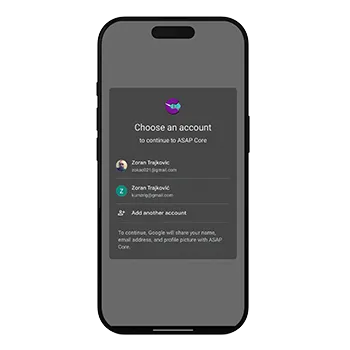
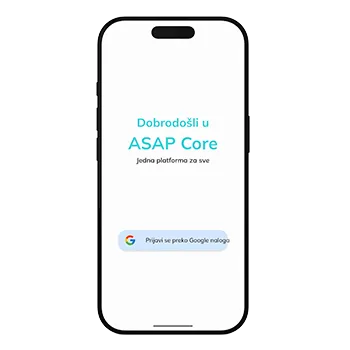
Odeljak sa naslovom „Sign in to the application“Open the ASAP CORE mobile application and sign in using your Google account.
If this is your first sign-in, the application will automatically open the account linking screen.
Select “Link by scanning a QR code”
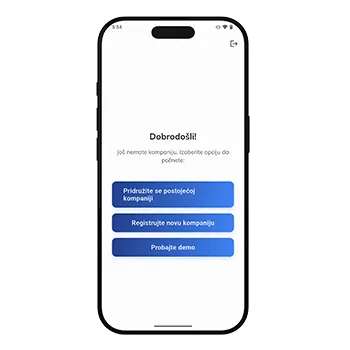
Odeljak sa naslovom „Select “Link by scanning a QR code”“On the account linking screen, select the option:
Link by scanning a QR code
Scan the QR code
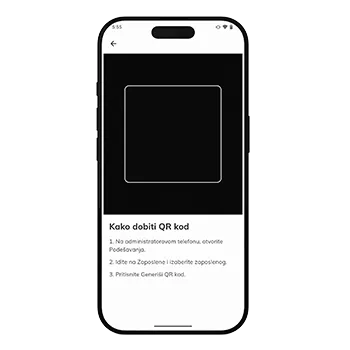
Odeljak sa naslovom „Scan the QR code“After selecting the option:
- The phone camera will be activated automatically.
- Scan the QR code displayed next to your name.
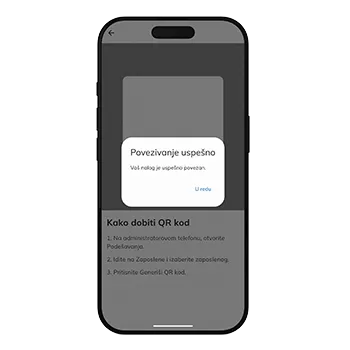
Successful linking
Odeljak sa naslovom „Successful linking“After successfully scanning the QR code:
- the account is linked to the company
- the appropriate roles and access permissions are assigned
- the application will automatically sign you out so the changes can be applied
Sign in again
Odeljak sa naslovom „Sign in again“After the automatic sign-out, sign in again using the same account.
Only after signing in again:
- the application continues operating
- available modules are displayed according to your access rights
Recommendation
Odeljak sa naslovom „Recommendation“If you are an employee who has already been added to the system by a supervisor,
always use the “Link by scanning a QR code” option.
This is the fastest and simplest way to get started.